 sligter
LandPPT - AI-Powered PPT Generation Platform







Open to Opportunities
If you're interested in my projects or have suitable collaboration opportunities, feel free to reach out!

English | 中文
Table of Contents
Project Overview
LandPPT is an intelligent presentation generation platform powered by Large Language Models (LLMs) that automatically converts document content into professional PPT presentations. The platform integrates multiple AI models, intelligent image processing, deep research capabilities, and rich template systems, enabling users to effortlessly create high-quality presentations.
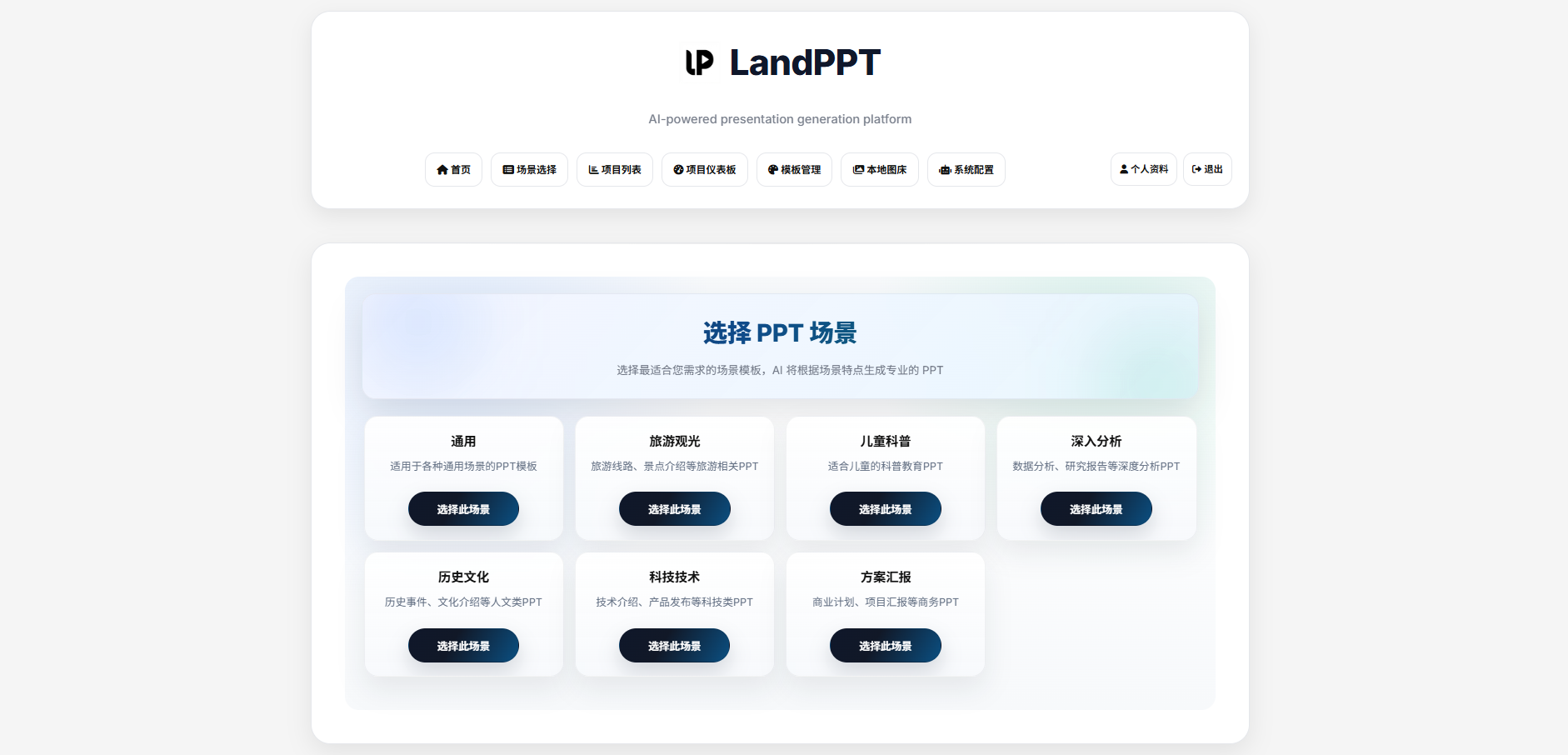
Main Interface
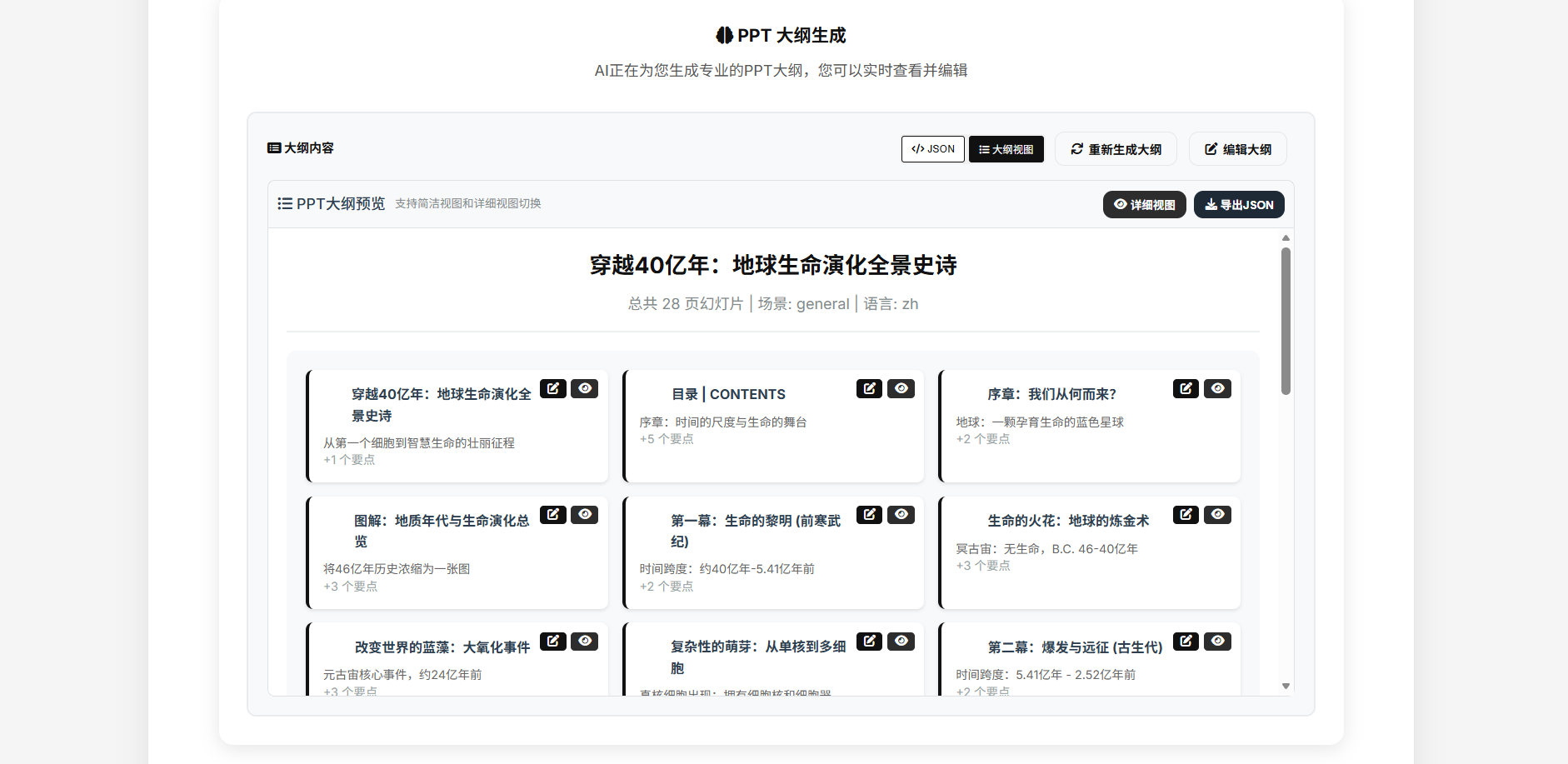
Outline Generation
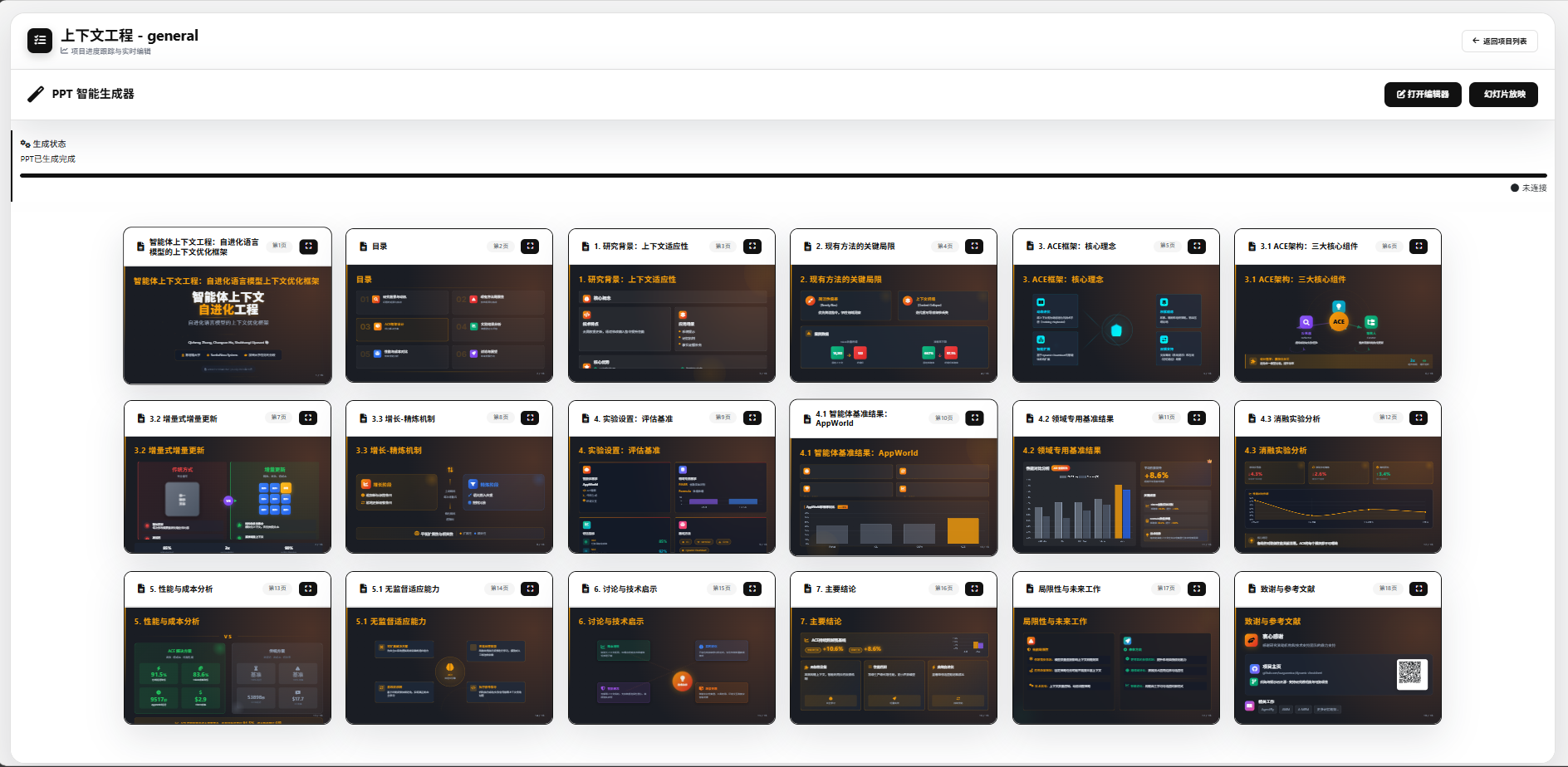
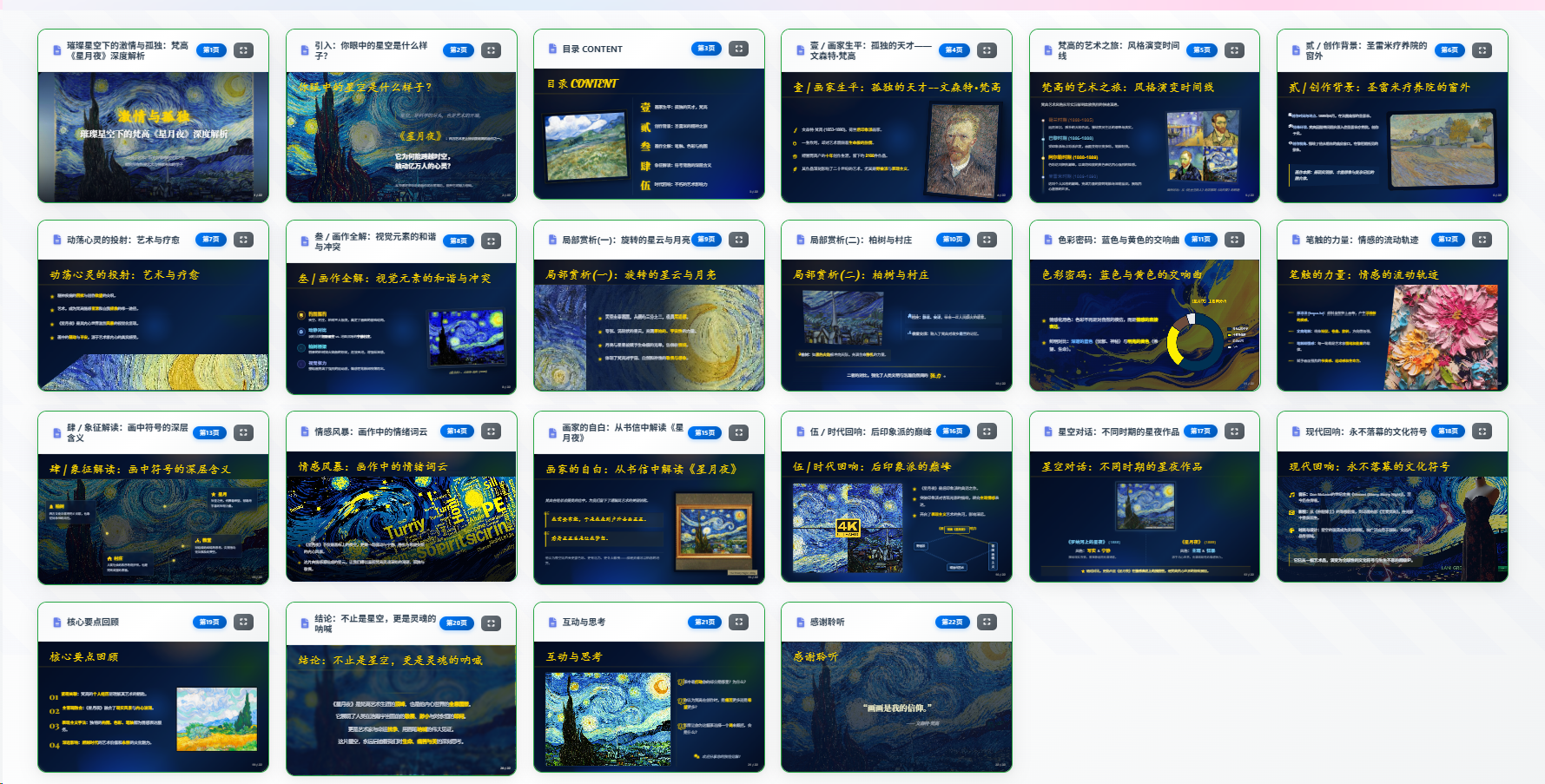
Generation Effect
Online editing

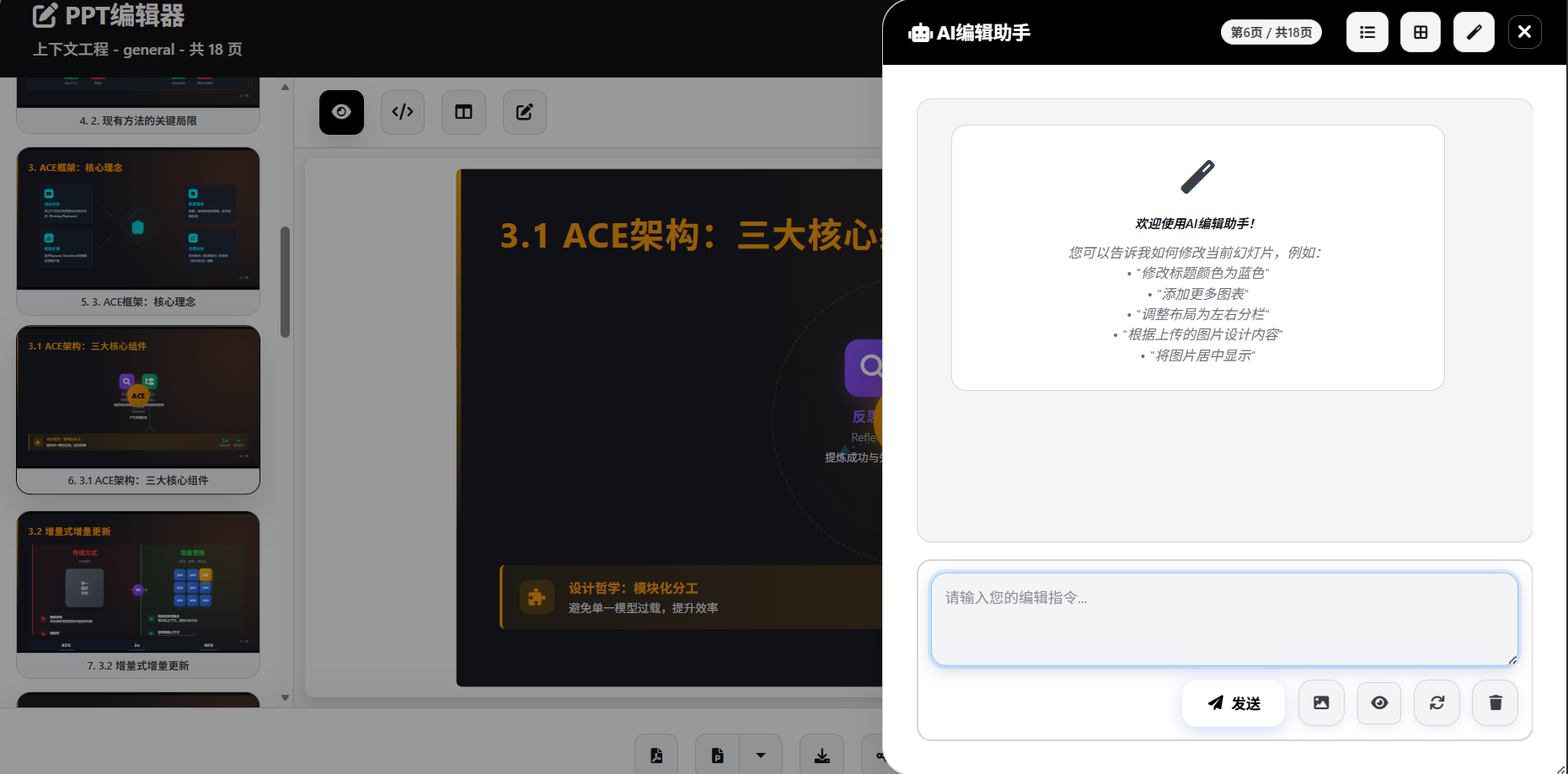
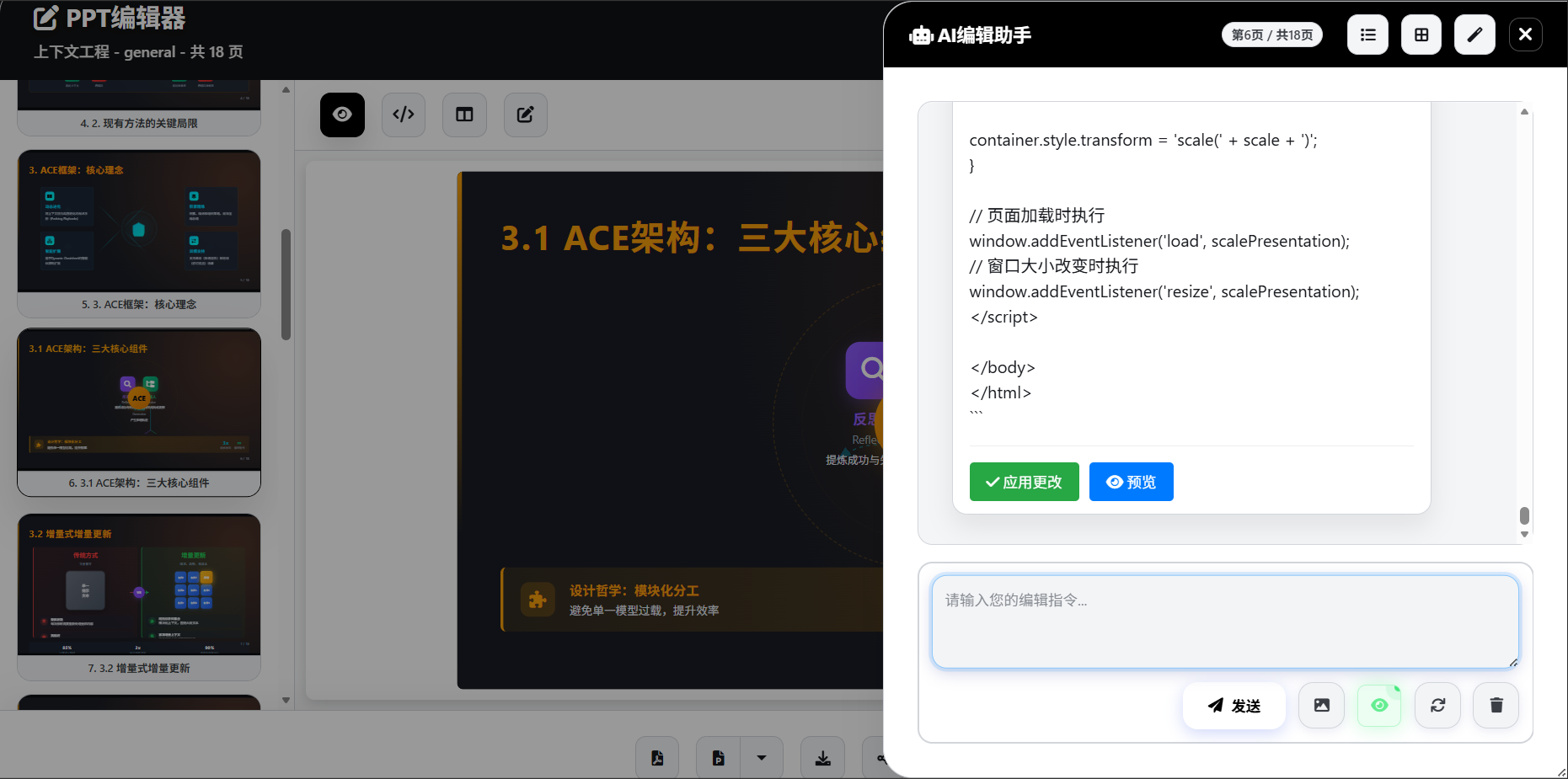
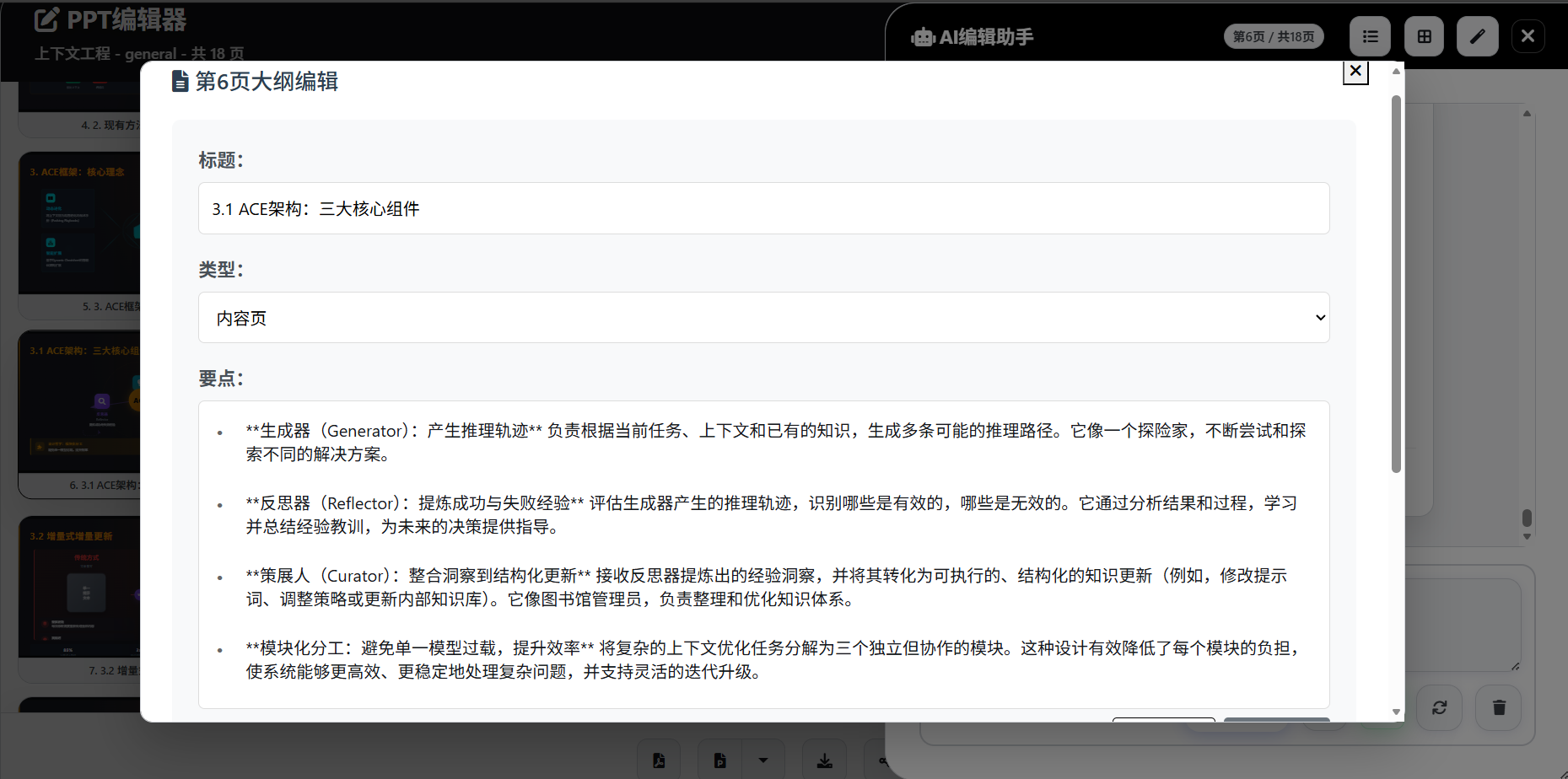
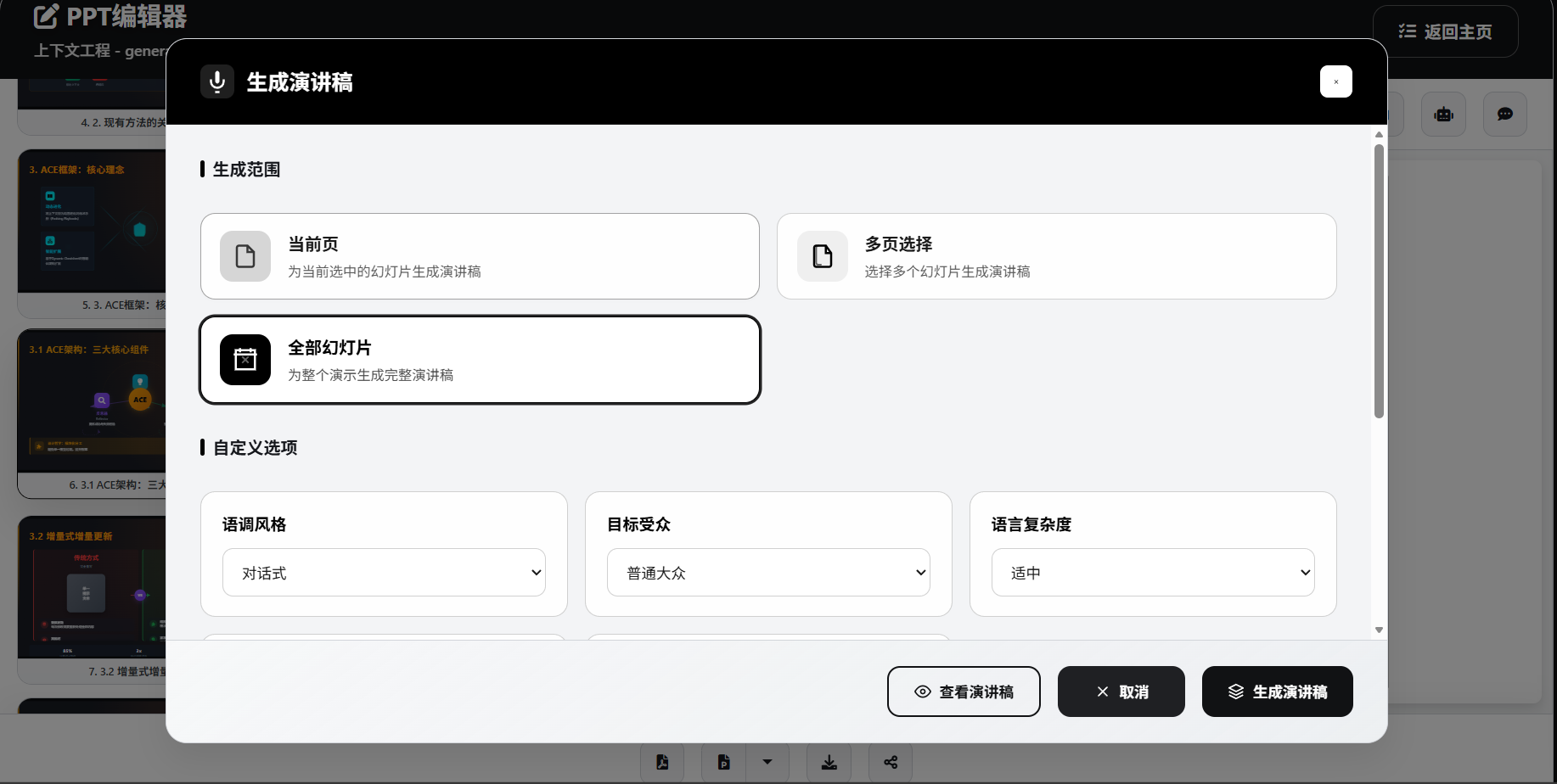
Speech Script Generation
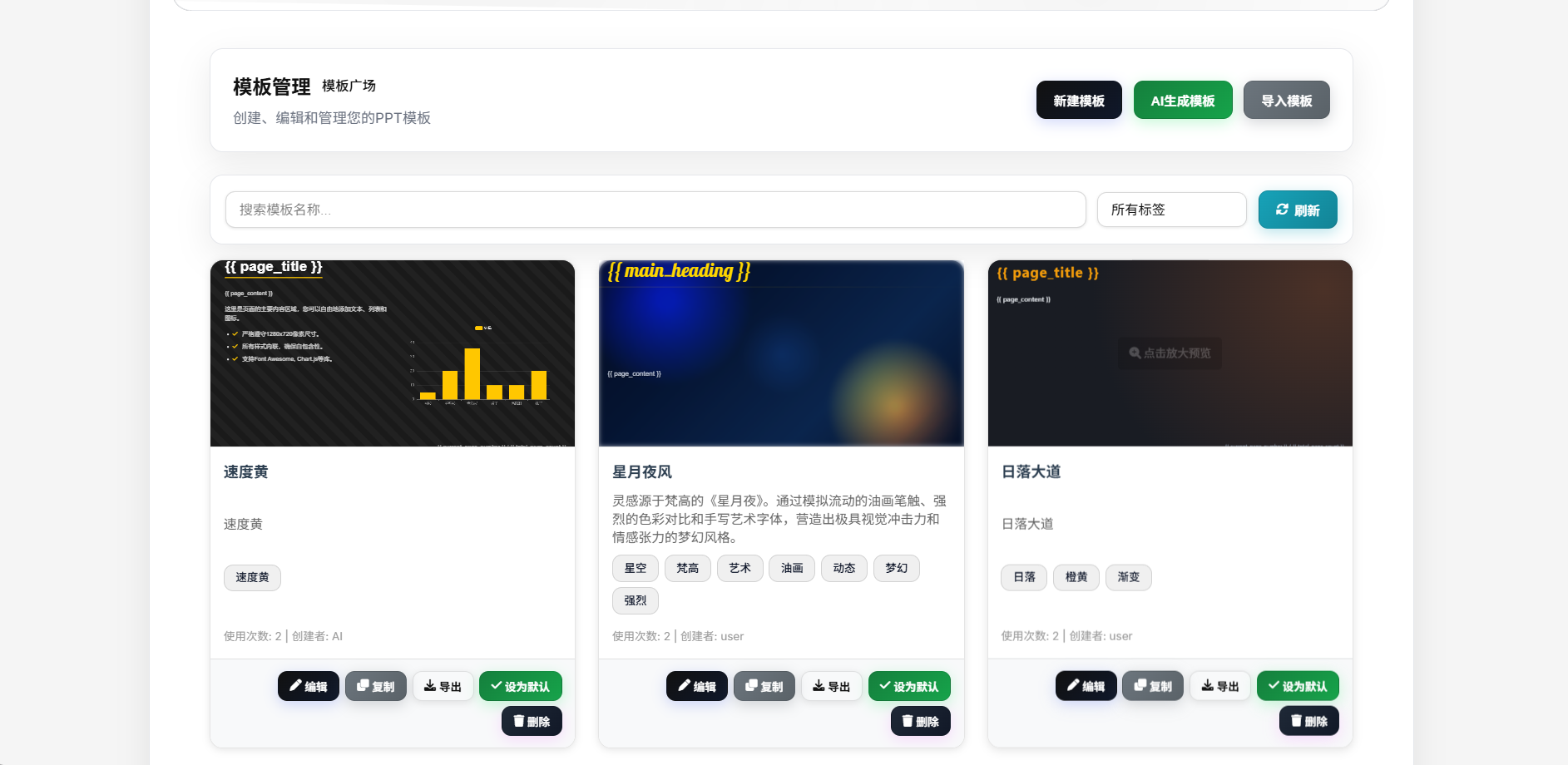
Template Generation
Features
Highlights:
- One-Click Generation: Topic to full PPT, fully automated with parallel generation
- Smart Image Matching: Gallery / web / AI generation fused; auto-matched
- Deep Research: Tavily + SearXNG dual engine, real-time web info extraction
- Speech Scripts & Narration Video: Speech scripts, Edge-TTS per-slide narration, exportable 1080p videos
- Multi-format Export: PDF / HTML / PPTX / image / DOCX / Markdown
- Automation Ready: OpenAI-compatible API + REST APIs with API-key auth
In Detail:
Multi-AI Provider Support
- OpenAI GPT, Anthropic Claude, Google Gemini, Azure OpenAI
- Compatible with DeepSeek, Moonshot, Qwen and other OpenAI-protocol endpoints
- Ollama local models; per-role model selection for precise cost control
File Processing & Deep Research
- Multi-format: PDF / Word / Markdown / TXT / Excel / PowerPoint
- High-quality parsing via MinerU + MarkItDown; retrieval via Tavily + SearXNG
- Deep web content extraction & summarization, multilingual real-time info
Image Processing
- Three sources: local gallery / web search (Pixabay, Unsplash) / AI generation (DALL-E, SiliconFlow, Pollinations, OpenAI, Gemini)
- AI auto-matches the best images; auto resize, format conversion, quality optimization
Template System
- Global master template + diverse AI layouts; scenario templates (general / tourism / education)
- Extract layout from uploaded reference PPTX; project-level AI-adaptive templates; custom templates
Project Management
- Four-stage workflow: Requirements → Outline → TODO tracking → PPT generation
- Stage restart & resume; visual outline editor with live preview; batch operations
- One-click public sharing with fullscreen playback, narration audio and subtitles
Web Interface
- Responsive UI, sidebar AI chat editing with image upload and visual analysis
- Speech-script generation (DOCX / Markdown / PPT notes), fullscreen playback, 16:9 live preview
Platform & Operations
- Docker / Compose single-container and multi-service; PostgreSQL + Valkey production stack
- Async background tasks (PDF / PPTX / narration video) with multi-worker fault tolerance
- Account system: local auth, GitHub / Linux Do OAuth, email verification, registration rate limiting
- Optional credits, SMTP / Resend, Cloudflare Turnstile; local-deployment friendly
Quick Start
System Requirements
- Python 3.11+
- SQLite 3
- ffmpeg (required for narration video export)
- Docker (optional)
Database Migrations (Automatic)
- By default, the app will auto-detect and apply pending database migrations on startup (not user-specific). Disable via
LANDPPT_AUTO_MIGRATE_ON_STARTUP=false. - Standalone/local startup now defaults to SQLite; only set
DATABASE_URLwhen you want to use PostgreSQL or another external database explicitly. - If you run multiple containers/nodes against the same database, consider disabling auto-migrate and running migrations as a dedicated one-off job.
Local Installation
Method 1: uv Setup (Recommended)
# Clone the repository
git clone https://github.com/sligter/LandPPT.git
cd LandPPT

# Install uv (if not already installed)
# Windows (PowerShell)
powershell -ExecutionPolicy ByPass -c "irm https://astral.sh/uv/install.ps1 | iex"
# macOS/Linux
curl -LsSf https://astral.sh/uv/install.sh | sh

# Install dependencies
uv sync --extra dev

# Configure environment variables
cp .env.example .env
# Edit .env file and configure your AI API keys

# Start the service (defaults to port 8000 with SQLite + memory cache; PostgreSQL / Valkey are optional)
uv run python run.py
Method 2: Traditional pip Installation
# Clone the repository
git clone https://github.com/sligter/LandPPT.git
cd LandPPT

# Create virtual environment
python -m venv venv
# Activate virtual environment
# Windows
venv\Scripts\activate
# macOS/Linux
source venv/bin/activate

# Install dependencies
pip install -e .

# Configure environment variables
cp .env.example .env
# Edit .env file and configure your AI API keys

# Start the service (defaults to port 8000 with SQLite + memory cache; PostgreSQL / Valkey are optional)
python run.py
Docker Deployment
Using Pre-built Image (Recommended)
# Pull the latest image
docker pull bradleylzh/landppt:latest

# Run container
docker run -d \
  --name landppt \
  -p 8000:8000 \
  -v $(pwd)/.env:/app/.env \
  -v landppt_data:/app/data \
  -v landppt_reports:/app/research_reports \
  -v landppt_cache:/app/temp \
  bradleylzh/landppt:latest

# View logs
docker logs -f landppt
Note
: Make sure to create and configure the
.envfile with necessary API keys before running.
Docker Compose (Recommended for Production)
The repository includes docker-compose.yml, which starts landppt + PostgreSQL + Valkey together. This is the recommended setup for multi-user deployments, background jobs, and long-running environments. For standalone local use, you can run python run.py / uv run python run.py directly and use the default SQLite + memory-cache setup without extra services.
# Prepare configuration
cp .env.example .env
# At minimum, set AI keys, SECRET_KEY, and POSTGRES_PASSWORD

# Start the production stack
docker compose up -d --build

# View logs
docker compose logs -f landppt
Default URL: http://localhost:6003
Development Mode (Hot Reload)
Use docker-compose-dev.yaml for source-mounted development with hot reload enabled.
cp .env.example .env
docker compose -f docker-compose-dev.yaml up -d --build
docker compose -f docker-compose-dev.yaml logs -f landppt-dev
Default URL: http://localhost:8001
Usage Guide
1. Access Web Interface
After starting the service, visit:
- Web Interface: http://localhost:8000
- API Documentation: http://localhost:8000/docs
- Health Check: http://localhost:8000/health
An administrator account is bootstrapped by default (admin / admin123), controlled by the LANDPPT_BOOTSTRAP_ADMIN_* environment variables. For production, always change the default credentials via these variables or disable auto-bootstrap.
2. Configure AI Providers
Configure your AI API keys in the settings page:
- OpenAI API Key
- Anthropic API Key
- Google API Key
- Or configure local Ollama service
3. Create PPT Projects
- Requirements Confirmation: Input topic, select audience, set page range, choose scenario template
- Outline Generation: AI intelligently generates structured outline with visual editing support
- Content Research: Optionally enable deep research functionality to get latest relevant information
- Image Configuration: Configure image acquisition methods (local/network/AI generation)
- PPT Generation: Generate complete HTML presentation based on outline
4. Edit and Export
- Use AI chat functionality for real-time content and style editing with image upload for visual references
- Support image replacement and optimization, AI template generation can reference uploaded images
- Generate accompanying speech scripts with single/multiple/all slide modes
- Generate per-slide narration audio via Edge-TTS or ComfyUI Qwen3-TD, including reference-audio upload support
- Export narrated MP4 videos with 1080p, 30/60fps, and optional embedded subtitles
- Export as PDF, HTML, standard PPTX, image-based PPTX, and speech script DOCX/Markdown formats
- Generate public share links and play narration audio/subtitles directly in the shared presentation page
- Save project versions and history
- Support batch processing and template reuse
5. Automation & Open Interfaces
- Use API keys to connect project workflows to n8n, CI jobs, scripts, or your own backend services
- OpenAI-compatible endpoints are available at
/v1/chat/completions,/v1/completions, and/v1/models - Project-level export/share/speech endpoints are available for non-browser automation flows
Configuration
Environment Variables
Main configuration items (common options are in .env.example; advanced options can be referenced in src/landppt/core/config.py):
# AI Provider Configuration
DEFAULT_AI_PROVIDER=openai
OPENAI_API_KEY=your_openai_api_key_here
ANTHROPIC_API_KEY=your_anthropic_api_key_here
GOOGLE_API_KEY=your_google_api_key_here
GOOGLE_BASE_URL=https://generativelanguage.googleapis.com  # Custom Gemini endpoint

# Role-based model routing (optional)
OUTLINE_MODEL_PROVIDER=openai
OUTLINE_MODEL_NAME=gpt-4o-mini
SLIDE_GENERATION_MODEL_PROVIDER=openai
SLIDE_GENERATION_MODEL_NAME=gpt-4o
EDITOR_ASSISTANT_MODEL_PROVIDER=openai
TEMPLATE_GENERATION_MODEL_PROVIDER=openai
SPEECH_SCRIPT_MODEL_PROVIDER=openai
SPEECH_SCRIPT_MODEL_NAME=gpt-4o-mini

# Server Configuration
HOST=0.0.0.0
PORT=8000
SECRET_KEY=your-secure-secret-key
WORKERS=2
RELOAD=false

# Research Functionality Configuration
TAVILY_API_KEY=your_tavily_api_key_here        # Tavily search engine
TAVILY_BASE_URL=https://gateway.example.com/tavily # Optional custom Tavily gateway/proxy URL
SEARXNG_HOST=http://localhost:8888             # SearXNG instance URL
RESEARCH_PROVIDER=tavily                       # Research provider: tavily, searxng, both

# Image Service Configuration
ENABLE_IMAGE_SERVICE=false                      # Enable image service (off by default, enable on demand)
IMAGE_USER_STORAGE_QUOTA_MB=100                # Per-user image hosting quota (MB), set <= 0 to disable
PIXABAY_API_KEY=your_pixabay_api_key_here     # Pixabay gallery
UNSPLASH_ACCESS_KEY=your_unsplash_key_here    # Unsplash gallery
SILICONFLOW_API_KEY=your_siliconflow_key_here # AI image generation
POLLINATIONS_API_KEY=your_pollinations_api_key_here # Pollinations AI (gen.pollinations.ai)

# Automation auth
LANDPPT_API_KEY=replace-with-strong-random-key
LANDPPT_API_KEYS=admin:prod-key,robot:n8n-key
LANDPPT_BOOTSTRAP_ADMIN_ENABLED=true            # Bootstraps the admin account by default; change the default password or disable it in production
LANDPPT_ENABLE_API_DOCS=true
LANDPPT_ALLOW_HEADER_SESSION_AUTH=false

# Storage / cache
DATABASE_URL=sqlite:///./landppt.db
CACHE_BACKEND=memory
VALKEY_URL=valkey://localhost:6379
# Production example:
# DATABASE_URL=postgresql://landppt:password@localhost:5432/landppt
# CACHE_BACKEND=valkey

# Export Functionality Configuration
APRYSE_LICENSE_KEY=your_apryse_key_here       # PPTX export
COMFYUI_BASE_URL=http://127.0.0.1:8188        # ComfyUI TTS
COMFYUI_TTS_WORKFLOW_PATH=tests/Qwen3-TD-TTS.json

# Registration / OAuth / email / monetization (optional)
EMAIL_PROVIDER=smtp
ENABLE_USER_REGISTRATION=true
INVITE_CODE_REQUIRED_FOR_REGISTRATION=false
GITHUB_OAUTH_ENABLED=false
LINUXDO_OAUTH_ENABLED=false
ENABLE_CREDITS_SYSTEM=false
TURNSTILE_ENABLED=false

# Generation Parameters
MAX_TOKENS=8192
TEMPERATURE=0.7
Additional notes:
- Standard PPTX export depends on
APRYSE_LICENSE_KEY; the image-based PPTX endpoint/api/projects/{project_id}/export/pptx-imagesdoes not depend on Apryse and is better for preserving complex HTML/CSS styling. - Default local startup uses SQLite + memory cache on
http://localhost:8000; production deployments should still preferPostgreSQL + Valkey. - Narration video export requires
ffmpeg; ComfyUI voice cloning additionally requiresCOMFYUI_BASE_URLand a reference audio upload.
Contributing
We welcome all forms of contributions!
How to Contribute
- Fork the repository
- Create a feature branch (
git checkout -b feature/AmazingFeature) - Commit your changes (
git commit -m 'Add some AmazingFeature') - Push to the branch (
git push origin feature/AmazingFeature) - Open a Pull Request
For details, please see Contributing Guide.
Reporting Issues
If you find bugs or have feature suggestions, please create a new issue on the Issues page.
FAQ
Q: Which AI models are supported?
A: Supports OpenAI GPT, Anthropic Claude, Google Gemini, Azure OpenAI, and Ollama local models. You can switch between different AI providers in the configuration page.
Q: How to configure image functionality?
A: Configure the corresponding API keys in the .env file:
- Pixabay:
PIXABAY_API_KEY - Unsplash:
UNSPLASH_ACCESS_KEY - AI Generation:
SILICONFLOW_API_KEYorPOLLINATIONS_API_KEY
Q: Image links break behind a reverse proxy (Nginx, Apache)?
Without a correct base_url, you may see: image links still pointing to localhost:8000, images failing to load on the frontend, or broken image preview/download.
Solution (via the Web UI):
- Visit the system configuration page:
https://your-domain.com/ai-config - Switch to the "Application Configuration" tab
- Enter your proxy domain in the "Base URL (BASE_URL)" field, e.g.
https://your-domain.comorhttp://your-domain.com:8080 - Click "Save Application Configuration"
Q: How to use the research functionality?
A: Configure TAVILY_API_KEY or deploy a SearXNG instance, then enable research functionality when creating PPTs to automatically get relevant information.
Q: Does it support local deployment?
A: Fully supports local deployment, can use Docker or direct installation. Supports Ollama local models without relying on external APIs.
Q: How to export PPTX format?
A: Need to configure APRYSE_LICENSE_KEY, then select PPTX format in export options.
Q: How do I choose between standard PPTX and image-based PPTX?
A: Standard PPTX depends on APRYSE_LICENSE_KEY and is better when you want to keep editing the deck. Image-based PPTX embeds rendered slide images, which preserves complex CSS, icons, and special layouts better, but slide elements are typically no longer editable.
Q: How do I generate a public share link?
A: Use the share action in the project editor or call POST /api/projects/{project_id}/share/generate. Shared URLs use the /share/{share_token} pattern and can be disabled later via share/disable.
Q: How do I run development mode vs production compose?
A: For production, use docker compose up -d --build with the bundled docker-compose.yml. For local development, use docker compose -f docker-compose-dev.yaml up -d --build to enable source mounts and hot reload.
Q: Which narration providers are supported?
A: Edge-TTS is supported by default. You can also configure ComfyUI Qwen3-TD and upload reference audio for voice-cloning style workflows.
License
This project is licensed under the Apache License 2.0. See the LICENSE file for details.
Star History
Contact Us
- Project Homepage: https://github.com/sligter/LandPPT
- Issue Reporting: https://github.com/sligter/LandPPT/issues
- Discussions: https://github.com/sligter/LandPPT/discussions
If this project helps you, please give us a ⭐!
Made with ❤️ by the LandPPT Team