---
title: Database Access with PostgreSQL on GCP Cloud SQL
description: How to configure Teleport database access with GCP Cloud SQL PostgreSQL.
videoBanner: br9LZ3ZXqCk
---
(!docs/pages/includes/database-access/db-introduction.mdx dbType="PostgreSQL on Google Cloud SQL" dbConfigure="with a service account"!)
## How it works
(!docs/pages/includes/database-access/how-it-works/iam.mdx db="PostgreSQL" cloud="Google Cloud"!)


## Prerequisites
(!docs/pages/includes/edition-prereqs-tabs.mdx!)
- Google Cloud account
- Command-line client `psql` installed and added to your system's `PATH` environment variable.
- A host, e.g., a Compute Engine instance, where you will run the Teleport Database
Service
- (!docs/pages/includes/tctl.mdx!)
## Step 1/7. Enable Cloud SQL IAM authentication
Teleport uses [IAM database authentication](https://cloud.google.com/sql/docs/postgres/authentication)
with Cloud SQL PostgreSQL instances.
(!docs/pages/includes/database-access/cloudsql_enable_iam_auth.mdx type="PostgreSQL" !)
## Step 2/7. Create a service account for a database user
Teleport uses service accounts to connect to Cloud SQL databases.
(!docs/pages/includes/database-access/cloudsql_create_db_user_account.mdx!)
(!docs/pages/includes/database-access/cloudsql_grant_db_user.mdx!)
### Configure authentication for your service account
Now go back to the Users page of your Cloud SQL instance and add a new user
account. In the sidebar, choose "Cloud IAM" authentication type and add the
service account you've just created:

Press "Add" and your Users table should look similar to this:

See [Creating and managing IAM users](https://cloud.google.com/sql/docs/postgres/create-manage-iam-users)
in Google Cloud documentation for more info.
## Step 3/7. Create a service account for the Teleport Database Service
The final part of GCP configuration is to create a service account for the
Teleport Database Service.
### Create a service account
Go to the [Service Accounts](https://console.cloud.google.com/iam-admin/serviceaccounts)
page and create a service account:

### Grant permissions
(!docs/pages/includes/database-access/cloudsql_grant_db_service_account.mdx!)
"Service Account Token Creator", "Cloud SQL Viewer", and "Cloud SQL Admin"
IAM roles include more permissions than the Database Service needs. To further
restrict the service account, you can create a role that includes only the
following permissions:
```ini
# Used to generate IAM auth tokens when connecting to a database instance.
iam.serviceAccounts.getAccessToken
# Used to auto-download the instance's root CA certificate.
cloudsql.instances.get
```
### (Optional) Allow only SSL connections
(!docs/pages/includes/database-access/cloudsql-ssl.mdx!)
### (Optional) Create a key for the service account
(!docs/pages/includes/database-access/cloudsql_service_account_key.mdx!)
## Step 4/7. Gather Cloud SQL instance information
To connect a Cloud SQL database to Teleport, you'll need to gather a few pieces
of information about the instance.
- GCP Project ID.
You can normally see it in the organization view at the top of the GCP dashboard.
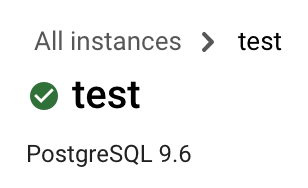
- Cloud SQL instance ID.
The instance ID is the name of your Cloud SQL instance shown at the top of the
Overview page:
- Cloud SQL instance endpoint.
You will use the instance's public IP address to connect to it. It can be viewed
on the "Connect to this instance" panel on the Overview page:

- (Optional) Cloud SQL instance root certificate.
(!docs/pages/includes/database-access/cloudsql_download_root_ca.mdx!)
## Step 5/7. Create a Teleport user
(!docs/pages/includes/database-access/create-user.mdx!)
## Step 6/7. Set up the Teleport Database Service
(!docs/pages/includes/database-access/token.mdx!)
Install Teleport on the host where you will run the Teleport Database Service:
(!docs/pages/includes/install-linux.mdx!)
Below is an example of a Database Service configuration file that proxies
a single Cloud SQL PostgreSQL database. Save this to `/etc/teleport.yaml`:
```yaml
version: v3
teleport:
data_dir: /var/lib/teleport
nodename: test
# Proxy address to connect to. Note that it has to be the proxy address
# because the Database Service always connects to the cluster over a reverse
# tunnel.
proxy_server: teleport.example.com:443
auth_token: "/tmp/token"
db_service:
enabled: "yes"
# This section contains definitions of all databases proxied by this
# service, can contain multiple items.
databases:
# Name of the database proxy instance, used to reference in CLI.
- name: "cloudsql"
# Free-form description of the database proxy instance.
description: "GCP Cloud SQL PostgreSQL"
# Database protocol.
protocol: "postgres"
# Database endpoint. For Cloud SQL use instance's public IP address.
uri: "35.1.2.3:5432"
# (Optional) path to Cloud SQL instance root certificate you downloaded
# manually above.
ca_cert_file: /path/to/cloudsql/instance/root.pem
# GCP specific configuration when connecting Cloud SQL instance.
gcp:
# GCP project ID.
project_id: ""
# Cloud SQL instance ID.
instance_id: "test"
# Labels to assign to the database, used in RBAC.
static_labels:
env: dev
auth_service:
enabled: "no"
ssh_service:
enabled: "no"
proxy_service:
enabled: "no"
```
```yaml
version: v3
teleport:
data_dir: /var/lib/teleport
nodename: test
# Proxy address to connect to. Use your Teleport Cloud tenant address here.
proxy_server: mytenant.teleport.sh:443
auth_token: "/tmp/token"
db_service:
enabled: "yes"
# This section contains definitions of all databases proxied by this
# service, can contain multiple items.
databases:
# Name of the database proxy instance, used to reference in CLI.
- name: "cloudsql"
# Free-form description of the database proxy instance.
description: "GCP Cloud SQL PostgreSQL"
# Database protocol.
protocol: "postgres"
# Database endpoint. For Cloud SQL use instance's public IP address.
uri: "35.1.2.3:5432"
# (Optional) path to Cloud SQL instance root certificate you downloaded
# manually above.
ca_cert_file: /path/to/cloudsql/instance/root.pem
# GCP specific configuration when connecting Cloud SQL instance.
gcp:
# GCP project ID.
project_id: ""
# Cloud SQL instance ID.
instance_id: "test"
# Labels to assign to the database, used in RBAC.
static_labels:
env: dev
auth_service:
enabled: "no"
ssh_service:
enabled: "no"
proxy_service:
enabled: "no"
```
A single Teleport process can run multiple different services, for example
multiple Database Services instances as well as other services such the SSH
Service or Application Service.
(!docs/pages/includes/start-teleport.mdx service="the Teleport Database Service"!)
### GCP credentials
(!docs/pages/includes/database-access/cloudsql_service_credentials.mdx!)
## Step 7/7. Connect
Once the Database Service has joined the cluster, log in to see the available
databases:
```code
$ tsh login --proxy=teleport.example.com --user=alice
$ tsh db ls
# Name Description Labels
# -------- ------------------------ --------
# cloudsql GCP Cloud SQL PostgreSQL env=dev
```
```code
$ tsh login --proxy=mytenant.teleport.sh --user=alice
$ tsh db ls
# Name Description Labels
# -------- ------------------------ --------
# cloudsql GCP Cloud SQL PostgreSQL env=dev
```
Note that you will only be able to see databases your role has access to. See
our [RBAC](../rbac.mdx) guide for more details.
To retrieve credentials for a database and connect to it:
```code
$ tsh db connect --db-user=teleport@.iam --db-name=postgres cloudsql
```
When connecting to the database, use the name of the database's service account
that you added as an IAM database user
[above](#step-27-create-a-service-account-for-a-database-user),
minus the `.gserviceaccount.com` suffix. The database user name is shown on
the Users page of your Cloud SQL instance.
To log out of the database and remove credentials:
```code
# Remove credentials for a particular database instance.
$ tsh db logout cloudsql
# Remove credentials for all database instances.
$ tsh db logout
```
## Troubleshooting
(!docs/pages/includes/database-access/pg-cancel-request-limitation.mdx!)
(!docs/pages/includes/database-access/psql-ssl-syscall-error.mdx!)
## Next steps
(!docs/pages/includes/database-access/guides-next-steps.mdx!)
- Learn more about [authenticating as a service
account](https://cloud.google.com/docs/authentication#service-accounts) in
Google Cloud.