---
title: Database Access with Microsoft SQL Server with Active Directory authentication (Preview)
description: How to configure Teleport Database Access with Microsoft SQL Server with Active Directory authentication.
videoBanner: k2wz79XCexY
---
Database Access for Microsoft SQL Server with Active Directory authentication
is available starting from Teleport `9.0`.
Database Access for Microsoft SQL Server is currently in Preview mode.
This guide will help you to:
- Install and configure Teleport.
- Set up access to SQL Server using Active Directory authentication.
- Connect to SQL Server through Teleport.

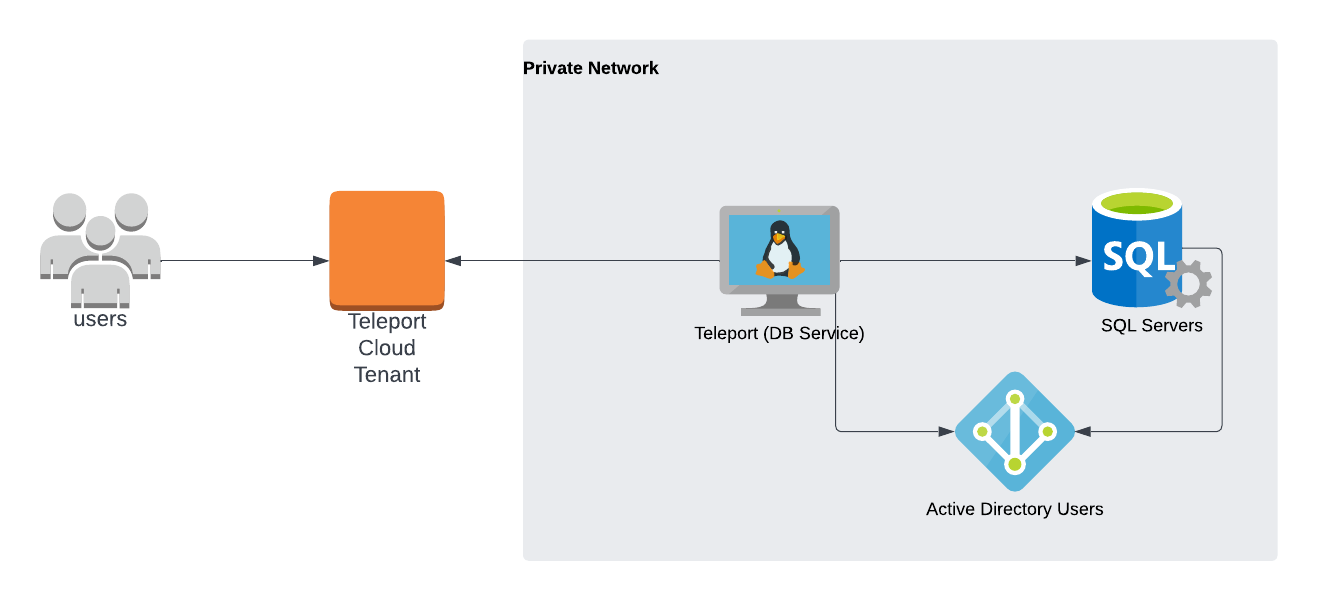
This guide will focus on Amazon RDS for SQL Server using AWS-managed Active
Directory authentication.
## Prerequisites
(!docs/pages/includes/edition-prereqs-tabs.mdx!)
- A SQL Server database with Active Directory authentication enabled.
- A SQL Server network listener configured with a Certificate using Subject Alternative Names
- A Windows machine joined to the same Active Directory domain as the database.
- A Linux node joined to the same Active Directory domain as the database. This
guide will walk you through the joining steps if you don't have one.
(!docs/pages/includes/tctl.mdx!)
## Step 1/7. Create a Teleport user
(!docs/pages/includes/database-access/create-user.mdx!)
## Step 2/7. Join the Linux node to Active Directory
You can skip this step if you already have a Linux node joined to the same
Active Directory domain as your SQL Server instance.
The Linux node where the Database Service will run must be joined to the same
Active Directory domain as the SQL Server database.
Note that in order to be able to join, the Linux node must be able to resolve
your Active Directory fully-qualified domain name. For example, for AWS-managed
AD, use nameservers provided under "Networking details" on the directory's
overview page.
Install necessary packages:
```code
$ sudo apt-get update
$ sudo apt-get -y install sssd realmd krb5-user samba-common packagekit adcli
```
```code
$ sudo yum -y update
$ sudo yum -y install sssd realmd krb5-workstation samba-common-tools
```
Edit `/etc/krb5.conf` to disable reverse DNS resolution and set the default
realm. Make sure that the `[realms]` section contains your domain definition
and has `admin_server` and `kdc` fields set pointing to the domain controllers:
```ini
[libdefaults]
default_realm = EXAMPLE.COM
rdns = false
[realms]
EXAMPLE.COM = {
kdc = example.com
admin_server = example.com
}
```
Join the realm:
```code
$ sudo realm join -v -U admin@EXAMPLE.COM example.com
...
* Successfully enrolled machine in realm
```
Note that the realm name in `admin@EXAMPLE.COM` **must** be capital case,
otherwise the node might not be able to join.
To confirm the node has joined the realm, use the `realm list` command:
```code
$ sudo realm list
example.com
type: kerberos
realm-name: EXAMPLE.COM
domain-name: example.com
configured: kerberos-member
server-software: active-directory
client-software: sssd
...
```
## Step 3/7. Create keytab file
Teleport requires a keytab file to obtain Kerberos service tickets from your
Active Directory for authentication with SQL Server. The easiest way to generate
it is to use the `adutil` Linux CLI utility.
Install `adutil` on the Linux node you have joined to your Active Directory
domain:
```code
$ curl https://packages.microsoft.com/keys/microsoft.asc | sudo apt-key add -
$ sudo curl https://packages.microsoft.com/config/ubuntu/18.04/prod.list | sudo tee /etc/apt/sources.list.d/msprod.list
$ sudo apt-get update
$ sudo ACCEPT_EULA=Y apt-get install -y adutil
```
```code
$ sudo wget -qO /etc/apt/trusted.gpg.d/microsoft.asc https://packages.microsoft.com/keys/microsoft.asc
$ sudo curl https://packages.microsoft.com/config/ubuntu/20.04/prod.list | sudo tee /etc/apt/sources.list.d/msprod.list
$ sudo apt-get update
$ sudo ACCEPT_EULA=Y apt-get install -y adutil
```
```code
$ sudo curl -o /etc/yum.repos.d/msprod.repo https://packages.microsoft.com/config/rhel/8/prod.repo
$ sudo ACCEPT_EULA=Y yum install -y adutil
```
Log in to Active Directory using the `kinit` command:
```code
$ kinit admin@EXAMPLE.COM
```
Use the `adutil keytab create` command to generate keytab entries for each
Active Directory user that will be connecting to the SQL Server database:
```code
$ adutil keytab create teleport.keytab alice
$ adutil keytab create teleport.keytab bob
```
You will be prompted to enter each user's password. All keytab entries will
be merged into the same `teleport.keytab` file.
For the `adutil keytab create` command to work, each user account must be
assigned a Service Principal Name, otherwise the command will not be able
to determine its `kvno` (key version number).
To check if the user has any SPNs assigned, run the following command on the
Windows machine joined to your Active Directory domain:
```code
$ setspn -L alice
```
To assign an SPN to a user account, use the following command:
```code
$ setspn -s user/alice alice
```
You can verify entries in the keytab file using `klist` command:
```code
$ klist -ke teleport.keytab
Keytab name: FILE:teleport.keytab
KVNO Principal
---- --------------------------------------------------------------------------
5 alice@EXAMPLE.COM (aes256-cts-hmac-sha1-96)
2 bob@EXAMPLE.COM (aes256-cts-hmac-sha1-96)
```
You must update the keytab file after updating a user's password to avoid
authentication failures.
## Step 4/7. Set up the Teleport Database Service
(!docs/pages/includes/database-access/token.mdx!)
Install Teleport on the host where you will run the Teleport Database Service:
(!docs/pages/includes/install-linux.mdx!)
Teleport Database Service must run on a Linux server joined to the same
Active Directory domain as the SQL Server.
Configure the Teleport Database Service. Make sure to update `--proxy` to
point to your Teleport Proxy Service address and `--uri` to the SQL Server
endpoint.
```code
$ sudo teleport db configure create \
-o file \
--token=/tmp/token \
--proxy=teleport.example.com:443 \
--name=sqlserver \
--protocol=sqlserver \
--uri=sqlserver.example.com:1433 \
--ad-keytab-file=/path/to/teleport.keytab \
--ad-domain=EXAMPLE.COM \
--ad-spn=MSSQLSvc/sqlserver.example.com:1433 \
--labels=env=dev
```
Configure the Teleport Database Service. Make sure to update `--proxy` to
point to your Teleport Cloud tenant address and `--uri` to the SQL Server
endpoint.
```code
$ sudo teleport db configure create \
-o file \
--token=/tmp/token \
--proxy=mytenant.teleport.sh:443 \
--name=sqlserver \
--protocol=sqlserver \
--uri=sqlserver.example.com:1433 \
--ad-keytab-file=/path/to/teleport.keytab \
--ad-domain=EXAMPLE.COM \
--ad-spn=MSSQLSvc/sqlserver.example.com:1433 \
--labels=env=dev
```
Provide Active Directory parameters:
| Flag | Description |
| ---- | ----------- |
| `--ad-keytab-file` | Path to Kerberos keytab file generated above. |
| `--ad-domain` | Active Directory domain (Kerberos realm) that SQL Server is joined. |
| `--ad-spn` | Service Principal Name for SQL Server to fetch Kerberos tickets for. |
### Service Principal Name
You can use `ldapsearch` command to see the SPNs registered for your SQL
Server. Typically, they take a form of `MSSQLSvc/.:`.
For example, an AWS RDS SQL Server named `sqlserver` and joined to an AWS managed
Active Directory domain `EXAMPLE.COM` will have the following SPNs registered:
```code
$ ldapsearch -x -h example.com -D admin -W -b DC=example,DC=com servicePrincipalName
...
# EC2AMAZ-4KN05DU, RDS, AWS Reserved, example.com
dn: CN=EC2AMAZ-4KN05DU,OU=RDS,OU=AWS Reserved,DC=example,DC=com
servicePrincipalName: MSSQLSvc/sqlserver-rds.example.com:1433
servicePrincipalName: MSSQLSvc/EC2AMAZ-4KN05DU.example.com:1433
servicePrincipalName: MSSQLSvc/EC2AMAZ-4KN05DU.example.com
...
```
Alternatively, you can look SPNs up in the Attribute Editor of the Active Directory
Users and Computers dialog on your AD-joined Windows machine. The RDS SQL Server
object typically resides under the AWS Reserved / RDS path:
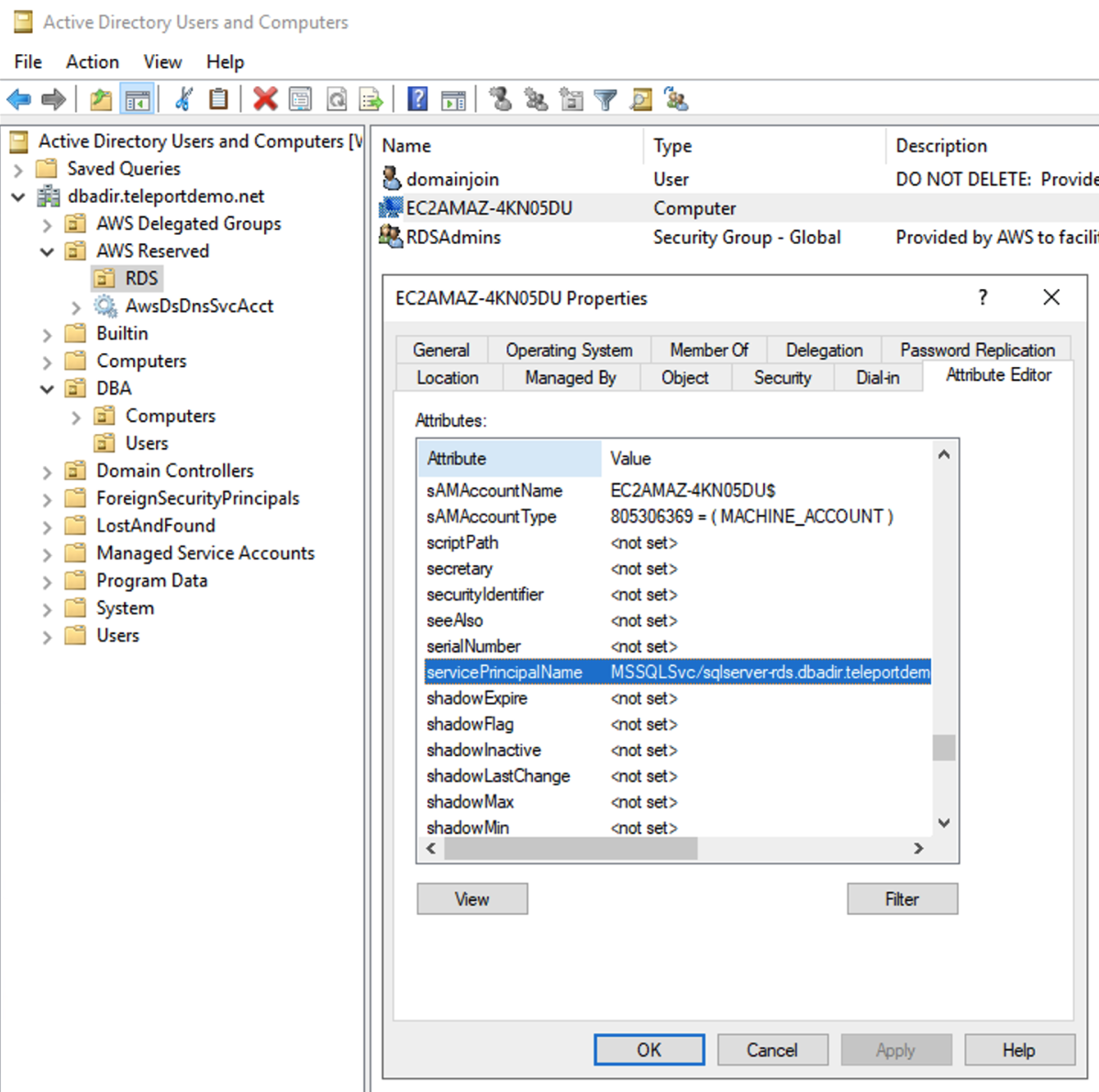
If you don't see Attribute Editor tab, make sure that "View > Advanced Features"
toggle is enabled.
## Step 5/7. Start the Database Service
Start the Database Service:
```code
$ teleport start --config=/etc/teleport.yaml
```
## Step 6/7. Create SQL Server AD users
You can skip this step if you already have Active Directory logins in your
SQL Server.
Connect to your SQL Server as an administrative account (e.g. `sa`) and create
logins that will use Active Directory authentication:
```sql
master> CREATE LOGIN [EXAMPLE\alice] FROM WINDOWS WITH DEFAULT_DATABASE = [master], DEFAULT_LANGUAGE = [us_english];
```
## Step 7/7. Connect
Log in to your Teleport cluster. Your SQL Server database should appear in the
list of available databases:
```code
$ tsh login --proxy=teleport.example.com --user=alice
$ tsh db ls
# Name Description Labels
# --------- ------------------- -------
# sqlserver env=dev
```
```code
$ tsh login --proxy=mytenant.teleport.sh --user=alice
$ tsh db ls
# Name Description Labels
# --------- ------------------- -------
# sqlserver env=dev
```
To retrieve credentials for a database and connect to it:
```code
$ tsh db connect --db-user=teleport sqlserver
```
The `mssql-cli` command-line client should be available in `PATH` of the machine
you're running `tsh db connect` from.
`mssql-cli` is not required for SQL Server connections. Use `tsh proxy db --db-user=teleport --tunnel sqlserver`
to connect from other DB Clients such as Microsoft SQL Server Management Studio.
To log out of the database and remove credentials:
```code
$ tsh db logout sqlserver
```
## Troubleshooting
### Certificate error
If your `tsh db connect` error includes the following text, the certificate used by SQL Server is not a known Certificate Authority.
```code
Error message: TLS Handshake failed: x509: certificate signed by unknown authority
```
Add the Certificate Authority (CA) `ca_cert_file` into the `tls` section so Teleport can validate the certificate.
```yaml
databases:
- name: sqlserver
protocol: sqlserver
uri: sqlserver.example.com:1433
ad:
keytab_file: /path/to/teleport.keytab
domain: EXAMPLE.COM
spn: MSSQLSvc/sqlserver.example.com:1433
static_labels:
"env": "dev"
tls:
ca_cert_file: /var/lib/teleport/cert.pem
```
## Next steps
(!docs/pages/includes/database-access/guides-next-steps.mdx!)
## Further reading
- [Manually join a Linux instance](https://docs.aws.amazon.com/directoryservice/latest/admin-guide/join_linux_instance.html) in the AWS documentation.
- [Introduction to `adutil`](https://docs.microsoft.com/en-us/sql/linux/sql-server-linux-ad-auth-adutil-introduction) in the Microsoft documentation.